How to Set Up Google Business Profile Correctly (2026 Guide)
Set up Google Business Profile (formerly Google My Business) step by step: claim or create the listing, exact name, address, phone, one category, then verify.
You type your own business name into Google Maps, and the listing that comes up has a phone number you stopped using 2 years ago. Sometimes the address is wrong. Sometimes nothing comes up at all.
For the full picture, see GMB Audit.
For the full picture, see Google Business Profile Manager.
Set up a Google Business Profile correctly by claiming what already exists. Create one at business.google.com/add only if your business does not show on Maps yet. Enter your exact name, location and phone. Choose the one category that describes your service, then verify ownership. Google opens most profile fields only after that.
Most setup guides repeat Google’s checklist and stop at “verify your profile”. This one also covers what we see when we audit the finished result. The postcard sent to an address nobody had updated. The “office” that gets a profile suspended. The second listing quietly answering with an old number.
TL;DR
- Google My Business and Google Business Profile are the same product. The rename happened in November 2021.
- Search your exact business name on Maps before you create anything. Claim the listing that is already there.
- Name, address, and phone must be exact. The category must name your main service.
- Verify first, and request the postcard code last. Any edit to the name, address or category voids it.
- After verification: hours, service area, and real photos before any review work.
Is Google My Business the same as Google Business Profile?
Yes. Google My Business is the old name for this exact product, and the rename landed in November 2021. Any guide about Google My Business setup describes the profile you are about to build, and the fields and the flow came through the rename untouched.
BrightLocal reported the change on Nov 4, 2021, alongside a bigger shift. Single-location listings moved into Google Search and Google Maps, and the mobile app was retired in July 2022. Before either name, the directory was Google Places. Three names, one listing.
Where the old name used to take you is the part that matters:
| What you used to use | Where it lives now | What changed |
|---|---|---|
| The Google My Business app on iOS or Android | The Google Maps app, or Google Search while signed in | Discontinued in July 2022, with no replacement app |
| The Google My Business dashboard for 1 location | Search or Maps, signed in to the account that owns the listing | One location is edited where customers see it |
| The same dashboard for many locations | Business Profile Manager |
The bulk interface stayed, under a new name |
| A profile set up years ago | The Google Account that claimed it | Ownership sits in the account, not the business |
The old app is a dead end, and it is also a clue. In the audits we run, the phone we are handed often still has it, signed in with the personal Gmail address the owner used years ago. Sometimes that account opens the profile. Sometimes the owner is staring at a profile they have never seen.
The profile lives inside a Google Account, so the account you sign in with decides what you see. Open the wrong one and the screens come back empty, or offer you a second profile you do not want. Confirm which account claimed the profile before you touch a field.
Two accounts cause most of this. A personal Gmail that set the profile up years ago, and a work address someone added later. A company email address can be linked to a Google Account if the owner would rather sign in that way.
The name changed in 2021, and the account that holds your profile did not change with it.
Is there already a Google Business Profile for your business?
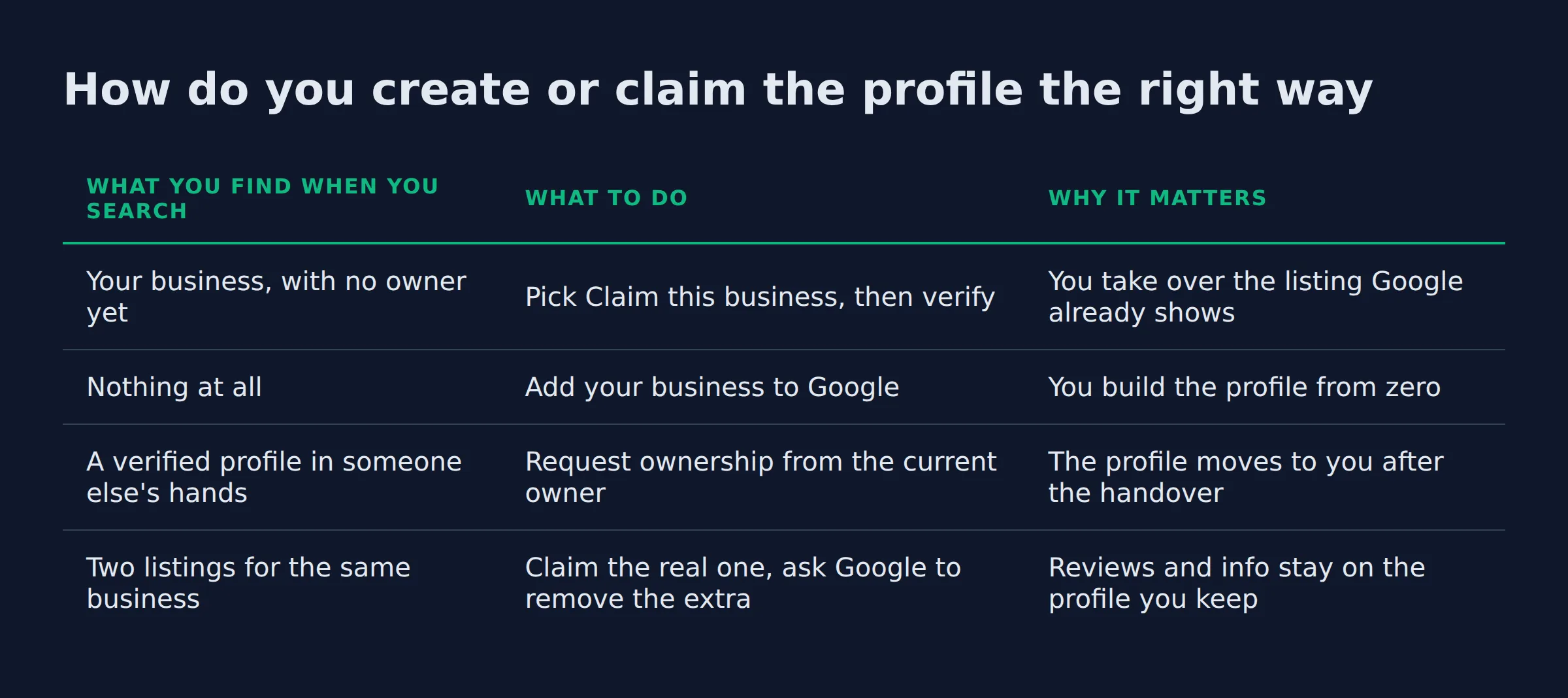
Search your exact business name and city on Google Maps before you create anything. Most service businesses already have a profile, whether they made it or not. If you find yours, claim it. Create a new one only when nothing shows up.
Google can show a profile nobody at your business ever made. It builds listings from public data, and past marketing helpers sometimes build them for you. Unclaimed, that profile shows whatever info Google found, and you cannot change a single field of it until you claim it.
We start every audit with this search. A second, older listing shows up more often than owners expect, and ignoring it has a cost. Reviews land on whichever profile Google shows, and the wrong phone number stays live.
Google’s guidelines for representing your business on Google allow 1 profile per business, because duplicates cause problems on Maps and Search. The official flow starts the same place we do, with adding or claiming your Business Profile.
| What you see when you search your name on Maps | What to do | What happens next |
|---|---|---|
| An unverified listing with no owner | Select Claim this business, then Manage now |
You control the info once verification passes |
| Nothing for your business at all | Click Add your business to Google at business.google.com/add |
You build the profile from zero |
| A verified profile that someone else manages | Select Request Access and send the ownership form |
The current owner gets 3 days to respond |
| Two listings for the same business | Claim the one with your real details, then report the duplicate | New reviews stop landing on the wrong listing |
| A suspended profile | Clear the suspension before you build anything | A new profile during a suspension can look like another duplicate |
The third row is the one we handle most. The profile is verified and the business is real. The account holding it belongs to a contractor or web designer who stopped answering email years ago.
Google’s request ownership from the current profile owner flow emails that person. After 3 days with no answer, Google says you have the option to claim the profile. A service-area business with no shop gets routed to support instead, under Transfer ownership of listing.
A denial is not a dead end either. Google’s resolve duplicate profiles and lost ownership page covers the appeal and the duplicate report. It also covers the case nobody plans for. The account that verified the business sits behind an email address from a job the owner left.
A second, unclaimed listing splits your reviews and keeps wrong info live. Claim it instead of starting over.
What do you need before you set up the profile?
Have 4 things ready before you start. Your business name exactly as it reads on your signage and invoices. A phone number you answer. A Google Account you will keep. The location call, meaning whether customers come to you or you drive to them.
Google’s get started with Google Business Profile page sets a short eligibility bar. A business must meet customers face to face, at your place or theirs. Everything else is detail work.
The name matters more than most owners expect. Google wants the name you use in the real world, the same version on your truck and your paperwork. Extra words in that field can get the profile suspended.
Then comes the address, and 3 setups Google rejects outright:
- A virtual office, which is a rented mailing address you do not operate from.
- A co-working desk with no clear signage, no customers arriving during business hours, and no staff of yours on site.
- A P.O. box, or a mailbox at a remote location.
If customers come to your shop, use the street address. If you drive to them, you are a service-area business, and Google’s rules are clear: hide the home address and show a service area instead. The plumber who works from home is Google’s own example, and Google suggests keeping the area within about 2 hours of driving time from your base.
The last piece is the account. Use one you will keep, because the profile lives in it. Everyone else who needs access uses their own Google Account, since Google’s owners and managers guide rules out shared logins.
The location call decides your whole setup. Show a storefront or a service area, never a desk you do not work from.
How do you create or claim the profile step by step?
Sign in to the Google Account that will own the profile and open business.google.com/add. Click Add your business to Google, or claim the listing you found, then follow the screens in order. Name, 1 category, address or service area, phone, then a verification option.
- Sign in with the Google Account you will keep. The profile lives inside it.
- Open
business.google.com/addand clickAdd your business to Google. - Type the business name exactly as it reads on your signage and invoices.
- Pick 1 category that names your main service. Google’s rule is the fewest categories it takes to describe the core business.
- Choose storefront or service area, then enter the address or set the area you cover.
- Add the phone number you answer, plus your website if you have one.
- Select a verification option from the list Google shows you.
The whole thing is free. Google’s own instructions state that you can add or claim your business at no charge. You can run the flow on a phone too, through Google Maps or Google Search.
Step 4 deserves more than a quick guess, because the category is what tells Google which searches your business can answer. That choice has its own mechanics, and we broke it down in picking the primary category for a service business.
One category, not 5. Google’s rule is the fewest labels that describe the core business.
How do you verify the profile, and how long does it take?
Verification is Google’s proof that you own the business. Google picks which methods you can use and you cannot swap them, and most profile fields stay locked until verification passes.
You need to pass verification before you can edit your business name, hours or any other info on Google, as its verify your business on Google guide puts it. So the method you get decides how long the whole setup takes.
| Verification method | What you need | Typical wait |
|---|---|---|
| Postcard | A correct mailing address on the profile | Most codes arrive within 14 days, and the code expires after 30 days |
| Phone or text | A line you answer, with no automated menu in the way | The code arrives in the call or the text |
| Access to the address shown on the verification screen | The code arrives by email | |
| Live video call | You on site during your own business hours, with a device that does video | Same day, when a support rep is free |
| Recorded video | A mobile device, and one unbroken take | Reviewed after upload, and reviews take up to 5 business days |
The recorded video carries the strictest rules. Keep the take live and unedited, and run it at least 30 seconds. Upload it from a mobile device through the profile, which is what Google’s page on verifying your business with a video recording requires. Leave out ID numbers, private information and other people’s faces.
The postcard carries the trap. Google tells you not to edit the business name, address or category after you request the code, because that edit makes the code in the mail useless. Asking for a second code invalidates the first one, and the clock starts over.
Most of the stalled setups we open look the same. The owner requests the postcard, then decides over the weekend that the category is wrong and fixes it. That one edit voids the code, and the profile sits unverified for another 2 weeks or so. Postcard is still the method we see most with home-service businesses, because a van-based company rarely has a storefront that qualifies.
The other stuck point is the mailing address. The code goes where the profile says, so an old address means the code goes somewhere you are not. Straighten the address first, then request the code.
Google skips the wait in a few cases. A business that verifies its website in Search Console can get verified instantly, and a clean video review can land in days.
Request the code last. Any change to the name, address or category after that request voids the code in the mail.
What setup mistakes keep a service business out of the map pack?
Four quiet mistakes hide service businesses. A category that does not name the main service is one of them. So are a fuzzy or fake address, an unclaimed duplicate, and name, address, and phone that disagree across the web. Each one tells Google to trust the profile less, and trust is what earns the map pack.
When we open a profile that has been live a while, the category is the most common setup error we see. The owner picked something close but not right, or loaded every related-sounding category. The profile stops matching the searches that actually pay.
- Category and name rules. Google’s guidelines cover both in one breath: fewest categories for the core business, and a name that matches your real one. Taglines and service lists in a name can lead to suspension, and we meet roofers filed under umbrella categories and house cleaners under commercial ones.
- Fake locations. A rented mailbox and a friend’s shop both look like storefronts on paper. The result is a suspended profile, and the owner finds out when it vanishes from Maps.
- Unclaimed duplicates. This is the mistake from the claim section, and it is the quietest one. The old listing keeps answering for the business with stale info while the new profile stays invisible.
- Name, address, and phone drift. The profile says one thing, your website says another, and directories add a third version. Consistent info feeds the trust signals behind how Google ranks local businesses.
Google builds local results from relevance, distance and prominence, the 3 factors in its local ranking guide. Relevance is the one you control at setup, and it comes from complete and accurate business info. Distance you cannot change. Prominence builds later, from reviews and links. Google also states that no one can request or pay for a better local ranking.
These same failures are the usual answers when an owner asks why your business is not showing up on Google Maps. None of them needs a penalty to hurt. Fix these four before you spend money on ads or review tools.
A suspended profile almost never comes from nowhere. It traces back to a setup shortcut, usually a fake address or a stuffed name.
What should you do right after verification?
Set the foundation before you chase reviews. Hours, service area, and real photos go in first. Then add the website link and a plain description of who you serve. A half-built profile wastes the traffic that a good review would bring.
| Setting | Why it goes in first |
|---|---|
| Business hours | Customers call when they know you’re open. Add holiday hours when they change. |
| Service area or address | Sets where customers can find you. |
| Real photos | Prove the work. Upload them from the device that took them. Empty profiles read as abandoned. |
| Website link | Connects your site to the profile. |
| Description | Says who you serve. Keep the website out of it, that’s what the link field is for. |
| Attributes and Q&A | Small labels for payments and services, plus answers to the questions customers post. |
Then search your own business name on Maps one more time. We find a second unclaimed listing in most of the DIY setups we audit.
The same audits turn up a home address still public on the profile, a phone number that disagrees with the website, and a category that never names the main service. None of that shows up from inside the profile. You see it from the customer’s side.
Set up access before you hand the login to anyone.
| What you can do | Owner | Manager |
|---|---|---|
| Edit the name, category or website | Yes | Yes |
| Edit hours, phone, services and attributes | Yes | Yes |
| Publish posts and reply to reviews | Yes | Yes |
| Add or remove users | Yes | No |
| Remove the Business Profile | Yes | No |
Managers carry mostly the same access as owners, with 2 exceptions. They cannot add or remove users, and they cannot remove the profile. The rule we use is simple. The business owner holds the owner role, and anyone helping with posts or reviews gets the manager role. It keeps the profile out of reach when a helper moves on.
Reviews come after all of that is done. They pull harder on a profile that is already complete, and our guide to getting more Google reviews for a service business picks up from there.
Hours, service area, and photos go in before any review work. Give owner access only to the person who could delete the profile.
Is a Google Business Profile setup service worth paying for?
Pay for the judgment calls, because the buttons cost nothing. Adding and claiming a profile is free, and Google does not sell better local rankings. A setup service earns its fee on the calls you cannot make from a help page.
For the full picture, see How to Track Leads From Google for a Local Business.
Do it yourself if the profile is new, the address is real, and you can wait on a postcard. The typing takes one sitting.
Bring in help when the profile is stuck. Three signs say it is time:
- A verification that keeps failing.
- A suspended listing that needs an appeal.
- A duplicate you cannot remove, or a listing held by an account nobody can reach.
An appeal has its own rules. Google’s guide to fixing a suspended profile is blunt about the evidence step: once you open that form, you have 60 minutes to submit it or nothing attaches.
The other reason to hand it over is time. The work behind a profile that gets found does not fit in one evening:
- Optimization, meaning the fields, photos and service details that match more searches.
- Review generation, meaning a system that asks customers at the right moment.
- Citation cleanup, meaning the same name, address and phone across the directories Google reads.
- Tracking, meaning knowing which searches actually send calls.
That ongoing work is what we manage for owners at Local Biz Boost. A verified profile is the starting line. What you do in the 6 months after setup is what decides whether anyone finds it.
The setup is free to do. What you pay for is knowing which listing, category and verification path fit your business.
Quick answers on Google Business Profile setup
Is Google Business Profile free?
Yes. Adding, claiming and managing a profile costs nothing, and Google states that nobody can pay for a better local ranking.
How long does Google Business Profile setup take?
The screens take one sitting, about 15 minutes, when your details are ready. The wait comes after, with verification. Phone, text and email codes arrive quickly, while most postcard codes take up to 14 days.
Can you set up a Google Business Profile without a physical address?
Yes, when you travel to customers. Run it as a service-area business, hide your home address, and set the area you cover. Keep that area within about 2 hours of driving time from your base.
Do you need a website before you set up the profile?
No. The website field is optional, so a call-only business can finish setup and add the link from the profile later.
Can you run the whole setup from your phone now that the Google My Business app is gone?
Yes. The Google Maps app and Google Search both run the full setup, and Maps can claim an unverified listing. The old Google My Business app has been gone since July 2022.
What if someone else already set up a profile for your business?
Request access from the current owner. Google emails that person and gives them 3 days to respond, and the option to claim the profile can open after silence. If the account that verified the listing is gone, the Google Account troubleshooter is the recovery path.
Why is my profile still not showing after setup?
Two causes cover most cases. Either verification has not passed yet, or Google suspended the profile for a guideline break. Check the profile for a Get verified button first, since that one is the easy fix.
A straight read on your setup
Setup mistakes are cheap in week one and expensive in month six. That is when the phone stays quiet and nobody can say why. If you want a straight read on where your Google visibility stands, a fifteen-minute call covers it. Book a time to talk.
Related: google business profile posts do they help ranking
Related: how to ask customers for reviews without being pushy
Related: does a local business need a website with google business profile
Related: local service website pages that rank on google
Related: local business schema markup explained
Related: local service website conversion rate
Related: what should a local service homepage say
Related: why is my website getting traffic but no calls
Related: service area pages for local seo
Related: how many location pages should a local business have
Related: thin content vs real local landing pages
Related: local citations for small business seo
Related: how to show up in chatgpt for local businesses
Related: does google AI overview help local businesses
Related: how to rank a local business in AI search
Related: call tracking for local service business
Related: how to measure local seo roi
Related: my business profile
Related: google business profile optimization services
Related: google business profile marketing kit
Related: local google advertising
Related: expanding a service business to a new city google
Related: service area business google